Published:2026-07-23
Keywords:Nano Banana Pro, local edit, multi-image fusion, nanobanana prompts, character consistency, Nano Banana official website
Need a new background, a material variation, or a character and product in one frame? First decide whether you are editing one reference or combining inputs. This guide provides preparation steps and three prompt templates; it does not guarantee a fixed completion time, unchanged identity or production-ready output.
This is an independent tutorial, not Google’s official website. The creation button opens a partner app. Check its actual models, reference-image controls, supported inputs and prices before starting; a template cannot enable an unavailable editing mode.
Use Template A for a background change, B for material appearance, and C to describe relationships between multiple images. The scenarios below are planning examples, not documented before/after tests. Keep the original input so you can compare details and restart if edits drift.
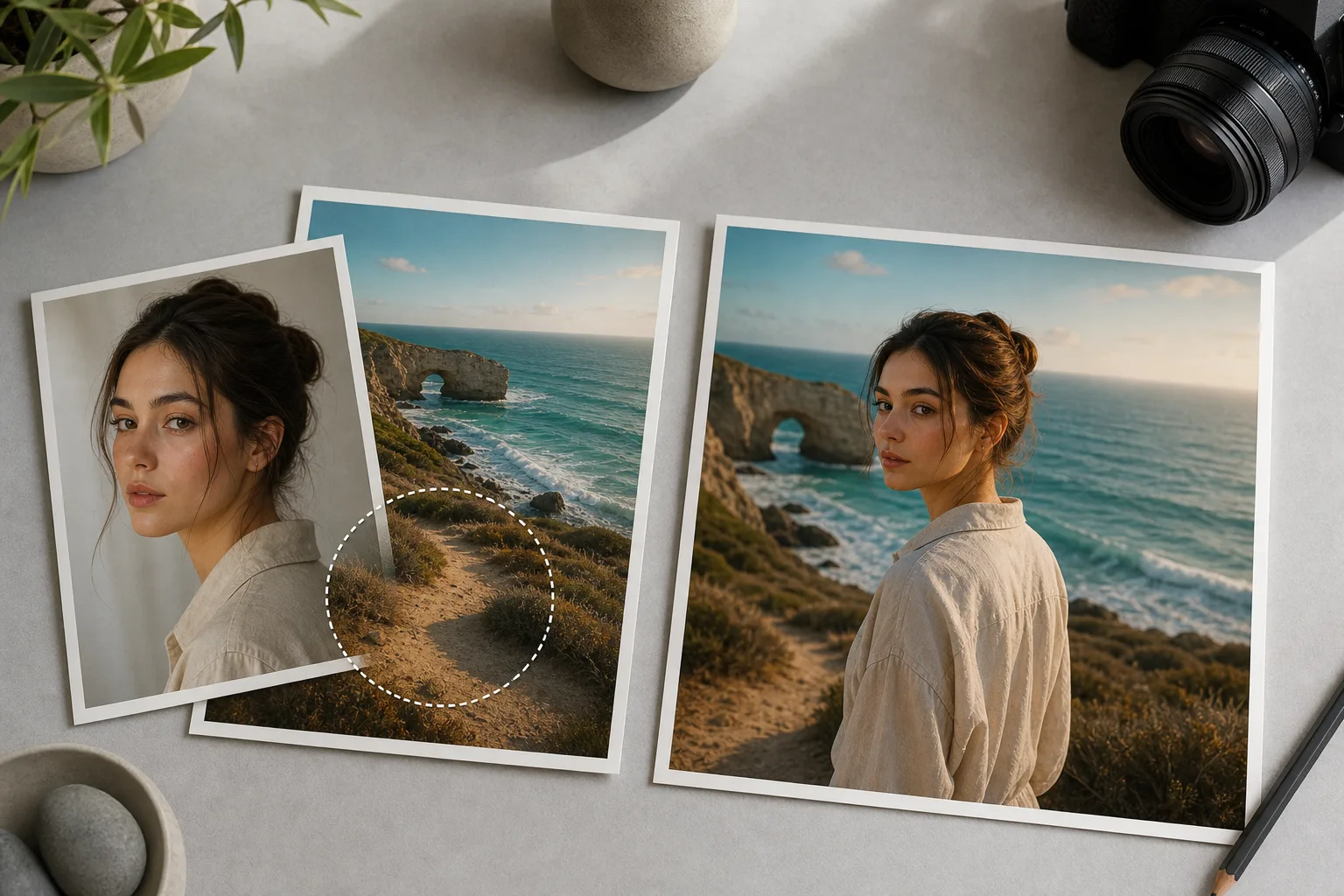
1. Why Nano Banana Pro for local edit & multi-image fusion?
Compare models only when the app makes them available, using the same input and task. This article does not include controlled evidence that Pro always preserves faces, labels or lighting better. Plan the task around the following checks:
| Capability | Traditional PS cutout composite | Nano Banana Pro |
|---|---|---|
| Edit scope | Use masks and layers to control regions | Describe the region; inspect whether untouched areas changed |
| Subject details | Keep original pixels where appropriate | Compare faces, labels and product shape against the reference |
| Multiple inputs | Place and transform source layers | Assign each supported input a role and check scale and perspective |
| Lighting | Adjust lighting and shadows manually | Request a common light direction, then inspect the result |
| Revision | Revisit the affected layer or mask | Change one request at a time and retain the original reference |
Natural-language editing can still redraw details outside the requested area. For exact labels, masks or layout, a conventional editor may be needed after generation.
2. Asset prep checklist (what decides whether fusion looks fake)
Before opening Nano Banana or Nano Banana Pro, prepare:
- Main image (Image 1, required): Subject to preserve (portrait / product / scene), clear and with single-direction lighting
- Reference image (Image 2, as needed): New background, new garment material, or second subject to fuse
- Optional Image 3: Style anchor (color tone, film look, brand poster mood)
- Change list (required): One sentence stating what to change / not change, e.g. “swap background to café only, preserve face and hairstyle 100%”
- Output specs: 1:1 social, 3:4 cover, 16:9 banner
- Negative constraints: No watermark, no garbled text, no extra limbs, no floating look
Template limits: The original blocks below use phrases such as “Preserve 100%,” “4K” and “no watermark.” These are prompt requests, not guarantees or settings. They do not remove embedded provenance, select export resolution or prevent identity drift. Replace placeholders and confirm actual controls in the app.
3. Four-step workflow (upload to final delivery)
Step 1: Enter Nano Banana Pro and upload references
- Open Nano Banana web app
- Check whether the intended model and reference editing are available; select them explicitly if supported.
- Upload Image 1 (main subject); add Image 2 (and optional Image 3) when fusing
Step 2: Choose a task template
- Template A: Local background / scene swap (subject locked)
- Template B: Local material / garment / prop swap
- Template C: Multi-image fusion storyboard / same-frame composite
Step 3: Preview QA — four checks
Verify:
- Regions you did not ask to change really stayed the same (face, logo, proportions)
- New and old regions share the same light direction
- Fusion edges are not harsh or “sticker-like”
- No extra fingers, duplicate limbs, or garbled text
Step 4: Refine one issue and check the downloaded file
Common instructions:
- “Increase background blur only; keep face sharpness unchanged”
- “Shrink Image 2 product 10%, place on table right, add contact shadow”
- “Soften fusion edges; unify color temperature to warm light”
When satisfied, download and inspect actual pixel dimensions, file format and aspect ratio. Choose supported export settings for the intended use; typing “4K” does not set the output size. Recheck text and product details before treating a file as a deliverable.
4. Prompt Template A: Local background swap (copy-ready)
Best for: Portrait scene swaps, product display environments, ID-level subject lock
How to use: Upload Image 1 as the subject; replace【新场景描述】with your real scene description.
Edit mode: LOCAL EDIT only. Use Image 1 as the exact subject to preserve.

Preserve 100%: face identity, hairstyle, body proportions, clothing (unless told otherwise), product label text, and camera perspective of the subject.

Change only: background / environment to 【新场景描述】.

Lighting: Match new environment light direction to soft contact shadow under subject; no cutout look; integrate subject into scene with realistic edge blending.

Style: Photoreal, Nano Banana Pro precision edit, commercial ready.

Negative constraints: do not redesign face, no warped logo, no extra limbs, no watermark, no global restyle of the subject.

Output: same aspect as Image 1 or 3:4, 4K, Nano Banana Pro local edit.
Usage notes
- Upload a clear main image in Nano Banana Pro
- Replace
【新场景描述】, e.g. “rainy Tokyo street, warm shop-window glow” - Generate with available settings, compare faces and edges, then verify the actual downloaded dimensions.
5. Prompt Template B: Local material / garment swap (copy-ready)
Best for: Change fabric, packaging material, or furniture surface — subject pose unchanged
Highlights: Explicitly targets “change only the material region” — replace【目标区域】with【新材质描述】in the prompt.
Edit mode: LOCAL MATERIAL / GARMENT SWAP on Image 1.

Preserve 100%: pose, face (if any), product silhouette, brand logo placement and legibility.

Replace only: 【目标区域】 material/appearance with 【新材质描述】 (e.g. matte black metal, linen fabric, frosted glass).

Keep folds, seams, and lighting consistent with original photo; update specular highlights to match new material.

Style: Precise Nano Banana Pro retouch, catalog-quality, no full-body redesign.

Negative constraints: no color bleed into untouched areas, no melted text, no watermark.

Output: 1:1 or 4:5, 4K.
6. Prompt Template C: Multi-image fusion storyboard (copy-ready)
Best for: Character + product same frame, dual roles in one scene, split storyboard layout
How to use: Image 1 = character / main product; Image 2 = second element or scene board. Fill【构图说明】and【一句话剧情】for the frame.
Fusion mode: MULTI-IMAGE COMPOSITE using Image 1 and Image 2 (optional Image 3 as style lock).

Identity lock: Image 1 subject identity preserved; Image 2 object/person preserved at correct scale.

Composition: 【构图说明】 (e.g. character left, product on table right, shared kitchen scene).

Physics: unified light from left window, shared contact shadows, consistent color temperature, seamless blend — Nano Banana Pro multi-image fusion.

Story beat: 【一句话剧情】 for a single storyboard frame.

Negative constraints: no duplicate faces, no floating objects, no conflicting shadows, no watermark, no garbled text.

Output: 16:9 storyboard frame or 3:4 cover, 4K.
7. Lighting, edges & identity lock tips (advanced)
Local edit and multi-image fusion most often look “obviously fake” at three points: edges, shadows, identity. Five rules:
- State scope in the first sentence: Start with
LOCAL EDIT onlyorMULTI-IMAGE FUSION - Make the preserve list specific: “face + hairstyle + label” beats vague “keep consistent”
- One primary light direction only: Left window light — do not also add right-side flash
- Scale anchors: When fusing, write “product same height as coffee cup” to prevent giant-object drift
- Change one category at a time: Swap background first, confirm, then swap material — avoid conflicting instructions
8. Three planning examples to evaluate
These examples describe inputs and review criteria. Complete generation logs and measured outcomes are not provided; the listed checks are not claimed results.
Case 1: Studio portrait → café lifestyle image
- Input: White-background studio portrait (Image 1)
- Template: Template A, new scene = warm café
- Check: Compare the face and wardrobe, then inspect edges, perspective and café lighting.
- Possible use after review: A social cover or a brand website draft.
Case 2: Water cup product → frosted glass material
- Input: White-background cup shot (Image 1)
- Template: Template B, target region = cup body material
- Check: Inspect label spelling, cup shape and reflections; generated material changes are a design proposal, not proof of the real product’s appearance.
- Use: E-commerce main image A/B testing
Case 3: Character + product → same-frame storyboard
- Input: Character Image 1 + product Image 2
- Template: Template C, kitchen countertop same-frame layout
- Check: Confirm subject counts, relative scale, surface contact and shadow direction before selecting the frame.
- Use: Ad storyboard, narrative hero on product detail page
9. Common mistakes & how to avoid them
| Symptom | Cause | Fix |
|---|---|---|
| Entire face redrawn | Reference quality, broad edits or model limitations may contribute | Return to the original and narrow the change; review the face again |
| Fusion looks like a sticker | Missing contact shadow / mismatched color temperature | Add soft contact shadow + unified CCT |
| Logo / label blurred | Small text or generated redrawing | Check each character; retain the original label or add accurate text in an editor |
| Proportion off | No size anchor | Write relative size vs cup / hand / table |
| Too many changes at once fail | Conflicting instructions | Split into two steps: background first, then material |
10. Nano Banana standard vs Nano Banana Pro — which to choose?
- Compare available models with the same references and change list, rather than assuming one model guarantees final quality.
- Check identity, labels, lighting and export dimensions independently. Keep failed outputs when comparing attempts so you do not judge only the best result.
For current access and billing, consult the partner app. For the general workflow, read the image generation guide.
11. Quick start in three steps
- Write what to change / not change → Upload Image 1 (+ Image 2) → Open Nano Banana Pro
- Copy the matching template → Replace scene / material / composition placeholders → Compare a preview against the inputs.
- Correct one issue → Download → Check actual size, labels and unchanged regions.
12. Final thought
For multiple references, make the role of each image explicit: Image 1 supplies the subject, Image 2 supplies the background or second object, and Image 3 supplies only a style direction if that input is supported. If references conflict in camera angle or lighting, choose which one takes priority instead of asking every detail to stay unchanged.
If repeated edits keep changing the subject, return to the original, reduce the scope or use a mask-based editor. For a specific symptom, see failures and fixes. For a new task, browse the prompt collection or contact sheet workflow.